
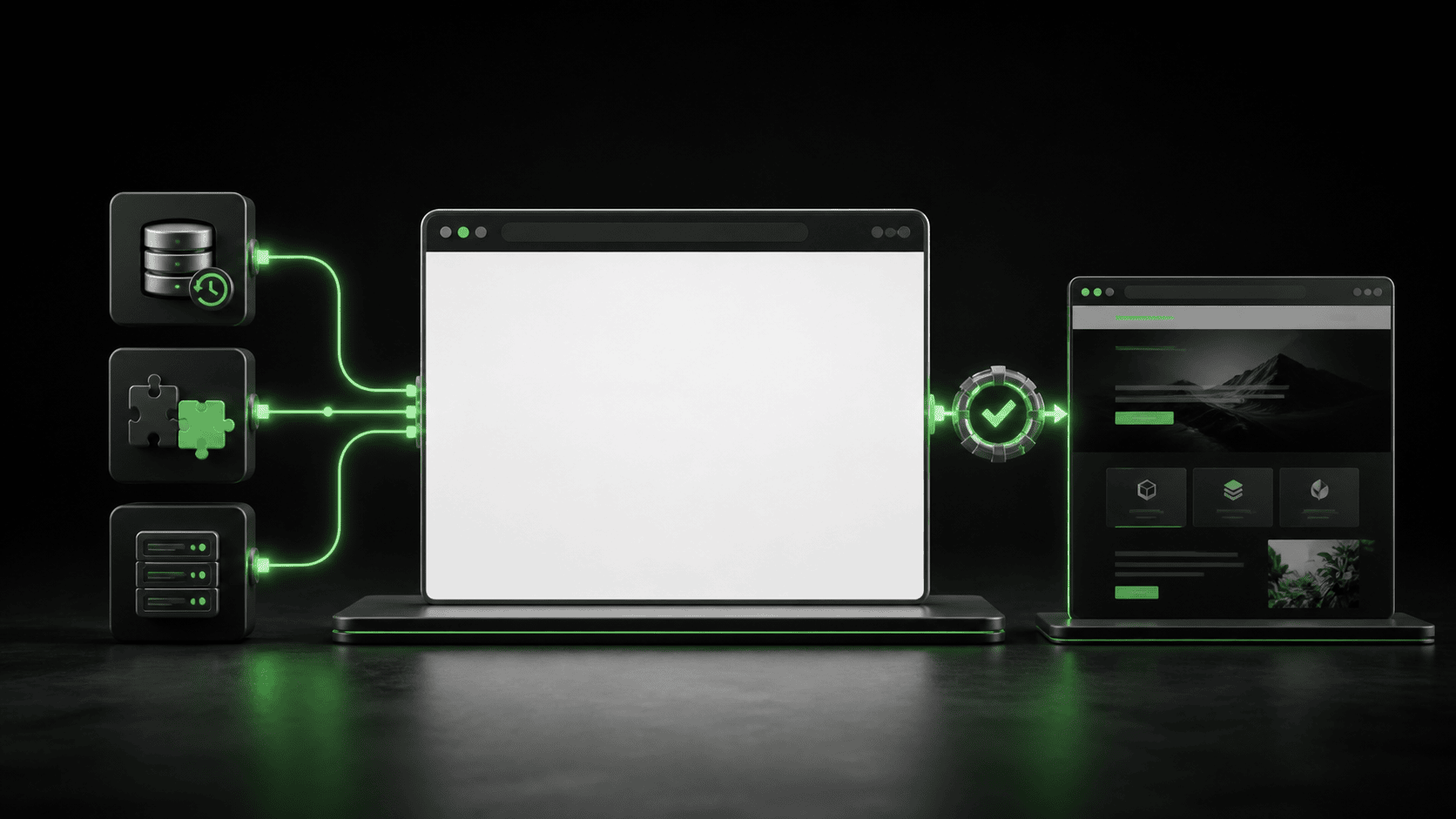
A blank page is a symptom, not a diagnosis
A WordPress white screen after an update means the request stopped before WordPress could render a useful page or error message. A plugin, theme, custom snippet, PHP limit, damaged file, cache layer, or hosting fault may be responsible. The blank screen alone does not identify which one.
That is why random fixes are risky. Disabling every plugin can remove checkout, forms, memberships, or security controls. Raising the memory limit can hide a loop without correcting it. Restoring the whole site can also overwrite new orders, enquiries, bookings, or content.
This guide uses the scope of the failure to choose the first useful check. You will protect important business paths, collect evidence, decide whether to roll back or repair, and know what to send your host or WordPress specialist.
First, map where the white screen appears
Open only a few representative URLs. Check the homepage, the WordPress login or dashboard, one affected page, and one critical workflow such as a form or checkout. Do not keep refreshing a live error or ask several people to reproduce the same transaction.
| What is blank | Likely first layer | First useful evidence |
|---|---|---|
| Every public page and the dashboard | PHP fatal error, exhausted resources, damaged files, or hosting failure | Server/PHP error log, update time, core checksums, and disk/resource status |
| Public pages, while the dashboard still opens | Theme, template, page builder, front-end plugin, or cache output | Affected template, recent design/plugin change, PHP log, and uncached test |
| Dashboard or editor, while public pages work | Admin-only plugin, REST/AJAX request, role rule, browser script, or firewall | Failed request, browser console/network entry, user role, and security event |
| One page, product, form, or template | Template-specific code, shortcode, query, widget, or content data | Exact URL, shared template, recent content change, and matching log entry |
| One visitor or network only | Browser cache, extension, CDN edge, IP rule, or local network | Private-window result, another network, response headers, and firewall event |
This scope map is the first non-commodity decision. It prevents a site-wide change when only one template or one visitor is affected.
A safe 10-minute recovery order
1. Protect orders, forms, and editorial work
Pause routine updates, imports, deployments, cache changes, and repeated submissions. If checkout, bookings, subscriptions, or lead forms may be affected, note the last confirmed successful transaction before anyone changes the site.
Do not place test orders on a live store unless the business has an approved test process. A read-only page check is enough to establish scope while evidence is still available.
2. Record the change window
Write down the exact local time with timezone, the action that came before the blank page, the user role, and the URLs affected. Include plugin, theme, WordPress, PHP, hosting, DNS, firewall, cache, and code changes made during the same window.
Correlation is not proof. However, a narrow timestamp lets a specialist compare the failure with PHP errors, deployment records, security events, and scheduled tasks instead of guessing from the current plugin list.
3. Check WordPress Recovery Mode
WordPress can email the site administrator when its fatal-error protection catches a plugin or theme failure. The message normally identifies the component and provides a temporary Recovery Mode link. Use the link only from the expected site and administrator mailbox, and preserve the component name and error before changing anything.
Recovery Mode may let an administrator sign in while visitors still see a broken front end. It is a controlled diagnostic route, not proof that the rest of the site is healthy. WordPress documents the underlying white-screen and plugin-isolation behavior in its official troubleshooting FAQ.
4. Read the log without showing errors to visitors
The useful record is usually in the PHP or web-server error log around the recorded timestamp. If WordPress-side logging is needed, follow the official WordPress debugging guidance. Keep public error display off on a production site because file paths, queries, and other internal details can leak to visitors.
Match the first fatal error to the request that failed. Later warnings may be side effects. Save the error type, file path, line number, component, request URL, and time. Do not post complete logs, customer data, cookies, tokens, private paths, or server addresses in a public forum.
5. Decide between rollback and repair
Rollback is appropriate when the failure started immediately after one controlled update, the previous version is known, the backup or package is trusted, and the rollback will not overwrite new business data. Repair is usually safer when the change window is unclear, several components changed, or the site has accepted orders, entries, or content since the last backup.
Use a staging copy when the live site still processes business activity. Our WordPress backup restore test explains why a restore notification is not enough: the recovery point must open, the database must match, and important workflows must still work.
Choose the next test from the evidence
| Evidence | Next controlled test | Stop condition |
|---|---|---|
| The log names one recently updated plugin | Reproduce on staging, compare the vendor changelog, and test the known previous version | Stop if the plugin controls payments, membership, security, or stored customer data and no tested rollback exists |
| The log names the active theme or a template file | Test the same URL with a safe staging theme switch or corrected template | Stop before changing the live theme when headers, tracking, checkout, or custom templates may disappear |
| The error says memory is exhausted | Find the request and component consuming memory before changing the limit | Stop if usage keeps rising after a small controlled test; a loop or oversized operation may remain |
| No PHP fatal appears and only one network fails | Compare another network, private window, response headers, and CDN/security events | Stop before disabling the firewall or clearing unrelated WordPress data |
| Core files fail an official checksum check | Preserve evidence, compare the update source, and replace only from a trusted WordPress package | Stop if unexpected files, users, or persistence signals suggest a security incident |
The stop condition matters as much as the next step. It marks the point where a basic owner should avoid turning a recoverable outage into lost data or a weaker security setup.
Why common white-screen fixes can backfire
Many search results repeat the same list: increase memory, rename the plugins folder, switch the theme, replace core files, or restore a backup. Each can be valid after the evidence points there. None should be the automatic first move.
- Do not deactivate every plugin on a live store without listing which business functions will disappear.
- Do not switch the production theme before preserving custom templates, menus, tracking, and theme settings.
- Do not increase memory repeatedly when one process continues consuming it.
- Do not replace
wp-config.php, uploads, or the database with files from a fresh WordPress download. - Do not restore an old database over new orders, form entries, bookings, users, or editorial work.
- Do not display debug errors publicly or share complete logs in public support threads.
If WordPress shows a visible critical-error message instead of a blank page, the same evidence-first principle applies. Use our critical error after a plugin update guide to preserve the failure and test one component at a time.
What to send your host or WordPress specialist
A concise evidence package usually reduces recovery time. Include:
- The first known failure time with timezone and the last known working time.
- The exact URLs and whether public pages, wp-admin, one template, or one network is affected.
- The last update or configuration change and who performed it.
- The first relevant PHP/server error with private data removed.
- Current WordPress, PHP, theme, and involved plugin versions.
- The newest tested restore point and whether live orders or entries arrived after it.
- The business functions that must be verified before service is considered restored.
Webless uses this evidence during WordPress maintenance and support. We isolate the failing layer, protect current data, make the smallest justified repair or rollback, and then verify anonymous pages, logged-in work, forms, checkout, scheduled jobs, and monitoring.
Prepare before the next WordPress update
WordPress 7.1 is scheduled for August 19, 2026. A scheduled release does not mean a site will fail. It does create a useful action date for checking backups, staging, plugin compatibility, and rollback ownership before a production update. The Webless WordPress 7.1 preparation checklist keeps that release-specific work on its existing URL.
For any update, record the versions before and after, test a representative page set, confirm the PHP log stays clean, and verify business workflows from an anonymous session. Monitor for delayed failures after caches rebuild and scheduled tasks run. A white screen that appears hours later may still trace back to the same update window.
Regular WordPress error-log monitoring gives you the missing context that a blank page cannot provide. Combined with tested backups and a staging workflow, it turns recovery from trial and error into a controlled decision.
The practical answer
A WordPress white screen after an update does not tell you to disable everything. First map the scope, protect live business data, record the change window, check Recovery Mode, and match the first relevant error to the failing request. Then choose a rollback or repair with a clear stop condition.
If the blank page affects checkout, forms, bookings, staff access, or most of the site, send Webless the URL, timestamp, recent change, and first relevant error. We can recover the site without guessing across every plugin, cache, and hosting layer.