
Start with the order, not the inbox
When WooCommerce order emails are not sending, the missing message is often the last visible symptom of an earlier failure. The payment may not have completed. The order status may not have changed. WooCommerce may have skipped or failed the email. Or the message may have left WordPress and then disappeared during delivery.
Those are different problems. Installing another SMTP plugin before you know which layer failed can hide useful evidence and add a second mail configuration to troubleshoot.
Start with one affected order and one expected email. Record the order number, payment method, order status, customer address, email type, and approximate checkout time. Then follow the evidence in order. This keeps the diagnosis tied to a real transaction instead of a generic test message.
WooCommerce order emails not sending: the four possible failure layers
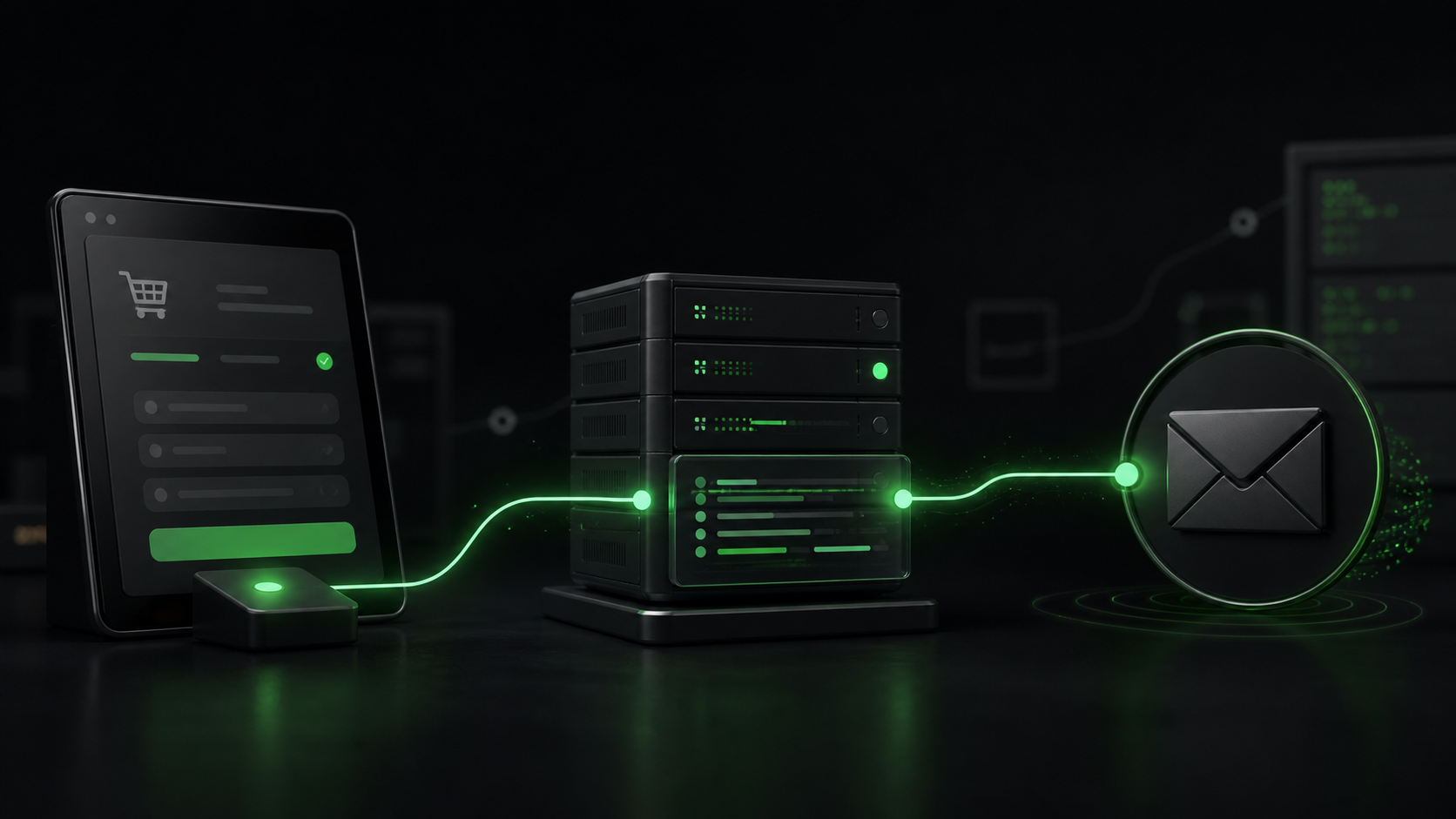
A WooCommerce order email passes through four practical layers:
- Checkout and payment: the customer submits the order and the gateway confirms or rejects payment.
- Order status: WooCommerce records the result and moves the order to the correct status.
- Email generation: the relevant WooCommerce notification is enabled and its trigger runs.
- Email delivery: WordPress hands the message to a mail service, which must authenticate and deliver it to the recipient.
The first failed layer determines the fix. A paid order still marked Pending payment points toward the payment-to-site communication or a conflict that interrupted the status change. A Processing order with a failed transactional-email log points toward the sending layer. A log marked sent, followed by no inbox delivery, points toward the mail provider, authentication, filtering, or recipient.
Use this evidence table before changing plugins
| What you find | Most likely layer | Next safe check |
|---|---|---|
| Payment failed or the customer abandoned the payment page | Checkout or payment | Confirm the gateway result and do not expect a paid-order email |
| Money was received, but the order is still Pending payment | Gateway callback, webhook, or order-status processing | Compare gateway records, order notes, WooCommerce logs, and the callback response |
| Order is Processing, but the expected email is disabled or has no recipient | WooCommerce email configuration | Correct that notification only, then run a controlled test order |
| Transactional email log says Failed | WordPress mailer, SMTP, API, or hosting | Use the recorded error and match it to the mail-service log |
| Transactional email log says Sent, but nothing arrives | Delivery or recipient filtering | Check provider delivery events, SPF, DKIM, DMARC, suppression lists, and spam folders |
| Only one email type or recipient fails | Template settings, recipient rule, customization, or mailbox | Compare a working notification with the failing one before changing the whole mail system |
This table is deliberately narrow. It stops an inbox problem from becoming a full-site plugin experiment.
Check the WooCommerce order status and notes
Open the affected order in WooCommerce and read its status and order notes. The payment method matters because different methods confirm payment in different ways.
WooCommerce explains that a Pending payment order has been received but remains unpaid. An offline bank transfer may correctly stay On hold until someone verifies the payment. A successful payment for a physical order normally moves it to Processing. The official WooCommerce order troubleshooting guide recommends identifying the gateway and using order notes before assuming the status is wrong.
If the gateway shows a successful charge while WooCommerce still shows Pending payment, pause. Manually changing the order status may send an email, but it does not repair the missing callback or interrupted code path. It can also make a single order look fixed while new orders continue to fail.
Therefore, compare the transaction ID, gateway event time, order notes, and WooCommerce logs. If the gateway tried to contact the site, check whether security rules, maintenance mode, a cache, a firewall, or a fatal error blocked that request. Keep customer and payment details out of screenshots or public support posts.
Confirm that the expected email should fire
Next, go to WooCommerce > Settings > Emails. Open the exact notification that is missing. A store-owner New order email and a customer Processing order email are separate notifications with separate recipients and conditions.
Check that the notification is enabled, the recipient is correct where WooCommerce asks for one, and the From address belongs to the store’s domain. The official WooCommerce email settings guide lists the built-in notifications and their triggers.
Do not use one successful password-reset email as proof that every WooCommerce notification works. WordPress core messages and WooCommerce transactional messages can follow different triggers, templates, and logs. Likewise, a successful manual test email proves only that the test reached the mail layer. It does not prove that checkout changed the order status or triggered the correct notification.
Read the transactional email log
Recent WooCommerce versions record transactional email attempts. Go to WooCommerce > Status > Logs, select the transactional-emails source, and find the event that matches the order and time.
WooCommerce’s email troubleshooting documentation separates the useful outcomes:
- Sent: WooCommerce handed the message to the site’s mail system.
- Failed: the mail process returned an error, which the log should record.
- Disabled or skipped: the notification or one of its required conditions prevented the send.
- No matching entry: the trigger may not have run, an earlier error may have interrupted the request, or you may be checking the wrong email type or time.
That distinction is more valuable than another blind test. For that reason, save the relevant timestamp and error text, but remove customer addresses, order data, API responses, and credentials before sharing it.
A sent message is not the same as a delivered message
WordPress normally passes email through wp_mail(). Its own function documentation warns that a successful return value only means the request was processed without an error. It does not prove that the recipient received the message.
If WooCommerce reports the email as sent, move to the mail provider. Search its activity or delivery log using the recipient and timestamp. Look for accepted, delivered, deferred, bounced, blocked, or suppressed events. Each result sends the investigation in a different direction.
However, a delivered event only means the recipient’s mail server accepted the message, so inspect spam, promotions, inbox rules, aliases, and mailbox policies. A bounce usually includes a reason. A suppression entry may come from an earlier hard bounce or complaint. No provider event at all suggests that WordPress never used the provider you expected or that the configured mailer did not receive the message.
Check the sender domain and authentication
A store should send from an address on its own domain, through a mail service authorized to send for that domain. Avoid using a public Gmail or Yahoo address as the WooCommerce From address.
Review SPF, DKIM, and DMARC for the sending domain. These DNS records help receiving servers confirm which systems may send mail and whether a message matches the claimed sender. WooCommerce’s email authentication guide recommends a branded-domain From address and authenticated delivery even for transactional messages.
Do not copy DNS records from a random tutorial. The exact values belong to the selected mail provider and current DNS setup. Multiple SPF records, stale DKIM selectors, or an aggressive DMARC policy can create a new delivery problem. Export or record the existing DNS values before changing them, then verify the result with the provider’s own tools.
Test the order journey, not only the email button
Once the evidence points to a fix, repeat the transaction path that originally failed. Use the gateway’s test mode or a low-risk controlled order where appropriate. Record the sequence:
- Place the order with the same payment method.
- Confirm the gateway’s result.
- Check the WooCommerce status and order notes.
- Find the transactional email log entry.
- Confirm the mail provider accepted and delivered the message.
- Verify both the store-owner and customer notifications that should exist.
Then test a second recipient on a different mailbox provider. This helps separate a store-wide failure from one mailbox’s filtering. The WooCommerce checkout testing checklist covers the wider cart, payment, confirmation, order, and cache checks that should surround this email test.
Know when to stop making live changes
Stop troubleshooting on the live store when the evidence points to a payment callback, repeated fatal error, custom order-status code, template override, queued background action, or conflict that you cannot reproduce safely. Disabling payment, checkout, security, or cache plugins one by one on a live shop can interrupt real orders and destroy the timing evidence you need.
Use a backup and a staging copy when the investigation requires plugin isolation or code changes. Keep payment gateways in their documented test mode and purge only the cache layers involved in the change. After a repair, retest checkout, order totals, stock reduction, customer emails, admin emails, analytics, and any fulfillment integration.
Webless WordPress maintenance services cover the monitoring, update, backup, and recurring verification side of this work. When the failure sits in a gateway integration, custom status rule, template override, or plugin conflict, WordPress development support can repair the responsible layer and test the complete order path.
The shortest reliable diagnosis follows the evidence
WooCommerce order emails not sending is not one problem. It is a symptom that can begin at payment, order status, notification logic, the WordPress mailer, the delivery provider, or the recipient.
Follow one affected order from the gateway to the inbox. Check status and notes first, then the notification settings, transactional log, provider events, and domain authentication. That order prevents unnecessary plugin changes and gives you a clear point where a store owner can act safely or hand the evidence to someone who can fix the failing layer.