
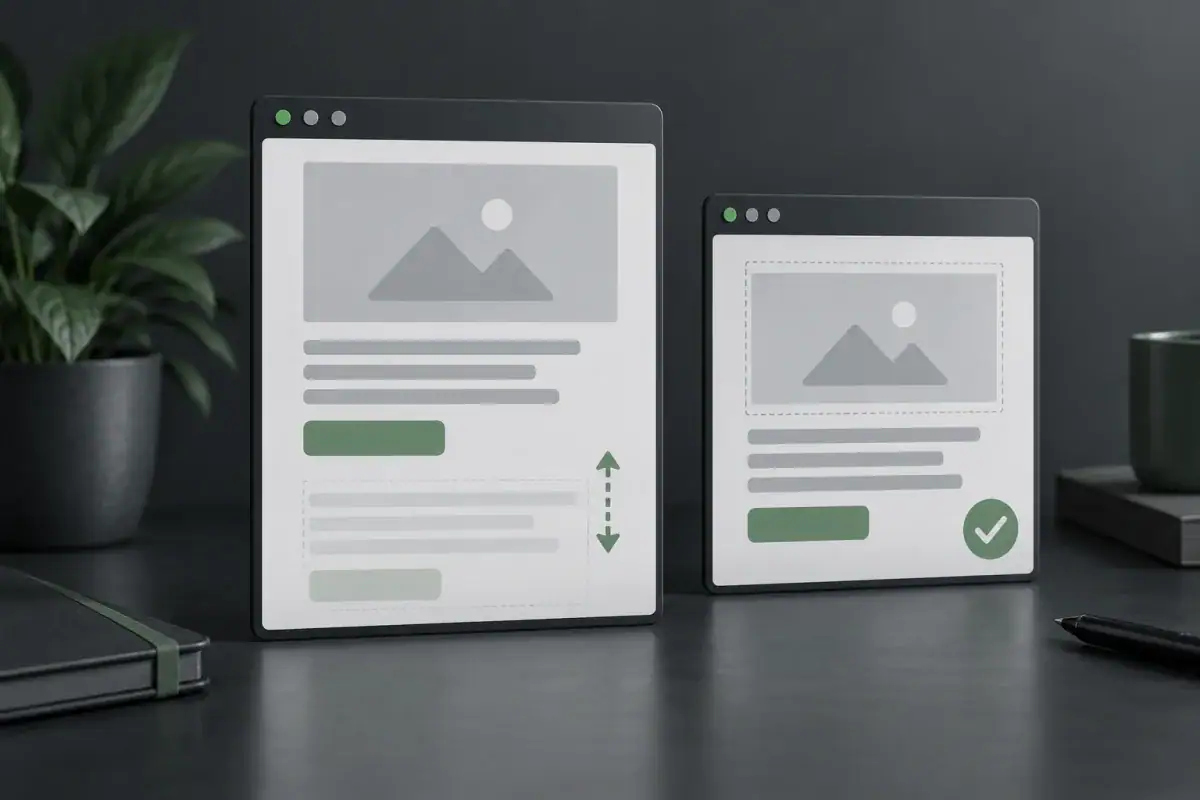
If your WordPress page jumps while loading, start by recording what moves, when it moves and what appears immediately before it. The heading or button that shifts may be the victim, not the cause. A component above it could be arriving late or changing size.
This guide helps business owners turn a visible jump into a focused repair brief. It is not a claim that your theme, hosting or optimization plugin is faulty. Do the observations on the public page first, then test changes on a protected staging copy.
Separate a layout jump from a slow page
A page can load quickly and still move unexpectedly. It can also load slowly while keeping everything in place. Cumulative Layout Shift, or CLS, measures visual instability; it is not a loading-time score. Our Core Web Vitals overview explains how it differs from loading and responsiveness metrics.
For this investigation, choose one affected page and one important task, such as reading a service description or reaching its enquiry button. Do not start by changing several performance switches. You need a repeatable symptom before you can judge a fix.
Capture the first movement
Open the page while logged out, at the screen size where you noticed the problem. Record a short screen capture from navigation through the first scroll. Note whether it happens on a first visit, a repeat visit or only after interacting with a banner. Keep customer information and private browser tabs out of the recording.
Use this table to decide what to investigate. These are diagnostic possibilities, not a remote diagnosis of your site.
| What you see | What to compare | Likely place to inspect |
|---|---|---|
| Text drops when a photo appears | The image area before and after loading | The image widget or template that reserves its space |
| The heading wraps onto another line | The lettering and line breaks before and after the change | Font delivery and the template’s typography settings |
| The whole page moves when a notice arrives | The space occupied by the notice before it appears | The banner or consent component and its placement |
| A section moves only after scrolling | The nearby image, video, calendar or other late-loading block | The component’s loading and reserved-space behavior |
| The header changes height after the page appears | Logo, menu and header dimensions at the same viewport | The header template and any sticky-header behavior |
Record the page URL, viewport width, browser, visit state and the time of the jump. A useful description is: “On the first logged-out mobile visit, the enquiry button moves down when the image above it appears.” That is more actionable than “the site feels unstable.”
Find the cause, not just the moving element
Google’s layout-shift guidance identifies missing space for images and embeds, injected content and web fonts as common causes. Its diagnostics also distinguish an element that moves from the element that caused the movement. For example, a paragraph may shift because something was inserted above it.
If you work with a developer, ask for a Chrome Performance recording of the same journey. The Layout shift culprits insight helps locate unexpected movement and possible causes. Ask them to connect the recorded shift to the actual WordPress widget, template or integration that owns it. A highlighted element alone is not sufficient justification to replace a theme.
For an image, the question is whether its space is reserved before it loads at that breakpoint. For a font, compare the initial and final text layout. For an embed, compare the empty, loading and ready states. For a banner, include both first-visit and returning-visitor behavior. Do not remove consent controls to make a performance test look better.
Make one change in the component that owns it
Before implementation, take a recoverable backup and agree which component will change. WordPress’s backup guidance covers both database and files; saving a screenshot of the editor is not a recovery point.
Where a builder or plugin provides the appropriate native control, use it. A layout setting belongs in the owning widget or template. A custom integration may need a code-level correction, but that should be scoped to the integration rather than a site-wide rule that hides moving content.
Ask for an explicit change record: which template or widget, which value changed, the previous value and how to restore it. Avoid accepting “we optimized everything” as the explanation. It makes both diagnosis and rollback harder.
Do not apply a fixed desktop height to every mobile image, remove all delayed loading, disable all plugins on production or hide a troublesome section without checking its purpose. Those changes can trade the original movement for clipped content, slower loading or a broken customer journey.
Use the same acceptance checks before and after
Repeat the original journey after the scoped change, then cover the states below. Use the same page, device conditions and visit state for comparisons. Record failures as well as improvements; a quiet screenshot cannot demonstrate that the page stayed stable during loading.
| Check | Accept the change when | Stop or revise when |
|---|---|---|
| First and repeat visits | The original jump is resolved in both observed states | Only the already-loaded or logged-in page looks correct |
| Desktop and narrow mobile | Text, images and controls remain readable and fully visible | Reserved space clips content or creates horizontal overflow |
| Scroll and late content | The relevant section remains usable as its content arrives | A new jump appears farther down the page |
| Banner states | Required choices remain accessible and behave correctly | The apparent fix removes or obstructs the controls |
| Primary action and keyboard use | The button stays reachable, focus is visible and the intended route opens | The target moves, disappears or becomes unreachable |
| Final cached public page | The same checks pass after the normal cache refresh | The fix exists only in the editor preview |
If a critical check fails, restore the changed component to its recorded previous state and verify the original behavior. Do not keep layering exceptions over an unexplained failure. If the issue cannot be reproduced, keep the evidence and investigate the missing conditions instead of declaring it fixed.
Why one good PageSpeed test is not the finish line
A basic load test may miss movement that occurs later in a visit. Field and laboratory results also describe different conditions. Check whether the real-user information is for that URL or the wider origin before treating it as evidence about this page. See our PageSpeed Insights versus Core Web Vitals guide for that distinction.
The immediate acceptance decision should combine the repeatable visual test, working interactions and a comparable performance trace where available. Real-user data can provide a later check, but missing field data is not a pass. Neither a stable page nor a better score guarantees a search ranking or additional enquiries.
When Webless can help
Send the affected public URL, the device and visit state, a redacted recording, and any recent template, font or integration change you know about. Do not send passwords or customer data in a general enquiry. Tell us which action visitors need to complete and whether the problem affects one page or a shared template.
Our WordPress speed optimization service is the relevant route for assessing layout stability alongside loading and interaction. The work should follow the observed cause and a defined acceptance test, not an assumption that another optimization plugin will solve it.