
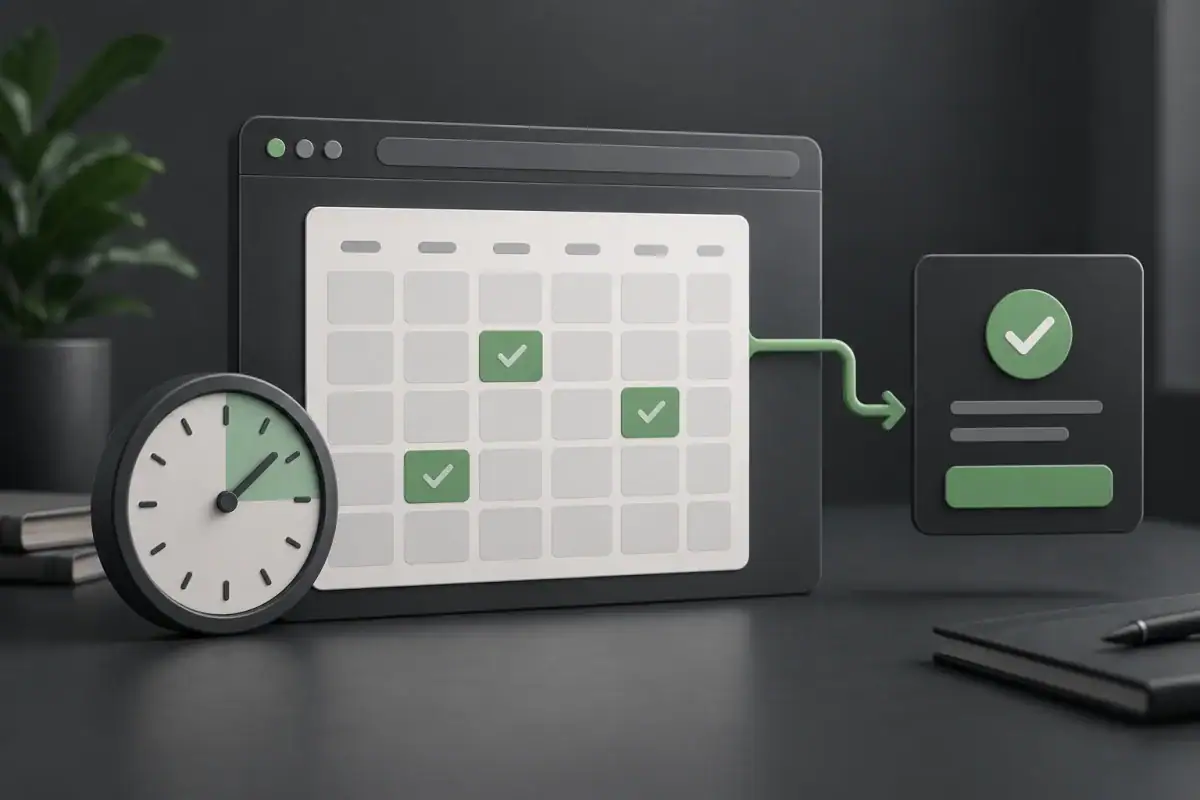
A Calendly calendar can make it easier for a visitor to book a call, but it also adds another service to your WordPress page. If the page became slow after you added it, do not start by delaying every script or replacing your booking system. First separate a slow page, a slow calendar and a button that does not open the calendar at all.
Compare the same page with and without the embed on a protected test copy, then test the booking journey before accepting a speed change. A higher page-load score is not a useful result if visitors cannot choose a time or reach confirmation.
This guide is for business owners whose WordPress service or contact page uses Calendly. It provides a diagnostic brief and acceptance checklist, not a benchmark or a claim that Calendly is always the cause. Keep real customer details out of screenshots and do not create live appointments without the account owner’s permission.
Identify what is actually slow
Write down the exact public page, the device used and the first action that feels delayed. Does the heading appear late? Does the calendar take time to become usable? Or does the booking button ignore the first tap? These observations point to different checks.
| Symptom | Useful comparison | What it does not prove |
|---|---|---|
| The whole service page loads slowly | Compare matched tests with the embed present and absent on staging | That every request to Calendly is unnecessary |
| The page appears quickly but the calendar arrives late | Record when the calendar becomes usable, not just when text appears | That a better initial score fixed booking speed |
| The booking button needs a second tap | Check initialization, delayed scripts and the first interaction | That the calendar account is configured incorrectly |
| Dates or confirmation are clipped on mobile | Inspect the actual embed container and each step’s height | That the problem is download speed |
| The standalone scheduling page also fails | Check the event’s public availability and provider status | That changing WordPress caching will resolve it |
Find where the embed is installed
Ask the site maintainer to identify the component that owns the calendar: a page block, an Elementor widget, an integration plugin, a reusable template or a sitewide code insertion. Record the existing setup before editing it. A visible calendar on one page does not tell you whether its assets also load elsewhere.
Calendly’s WordPress instructions distinguish adding an embed to one page from adding a popup across the site. They also describe a plain scheduling link when an embed is not supported. Those are different implementation choices, not evidence that one will be faster on your website.
If two components initialize the same calendar, have the developer verify which one is needed. Remove only a confirmed duplicate on staging. Do not delete all calendar code, edit a parent-theme footer or install a second integration as a quick experiment on the live site.
Make a controlled before-and-after comparison
Preserve the page content, embed configuration and relevant optimization settings in a recovery point. Use a private staging copy that is not accepting customer bookings. Keep the page content, viewport, device emulation, network conditions and consent choice the same between tests.
Run the original version more than once. On the test copy, temporarily replace only the embed with a clearly labelled scheduling link to the same event. Repeat the test and record both page loading and the visitor’s route to booking. The link is a diagnostic alternative, not automatic approval to change the live experience.
If the page improves, inspect which requests and browser work changed. If it does not, stop blaming the embed without more evidence. Images, fonts, layout and other scripts may still be responsible. Our WordPress INP guide covers broader interaction diagnosis.
Keep the score, calendar-ready observation and functional result separate in your notes. A test that excludes the booking tool entirely cannot certify that the eventual embedded version works well. Likewise, a blank placeholder is not a working calendar.
Choose the booking experience before changing loading
Calendly’s embed overview distinguishes an inline calendar, a popup opened from text and a floating popup widget. Choose based on what visitors need on that page. A dedicated booking page may need the calendar immediately; a long informational page may only need a clear route to scheduling.
A popup’s appearance does not by itself establish that its resources wait until the click. Ask the developer to verify the actual network behavior. Do not substitute an arbitrary delay such as three seconds for evidence that the first tap remains reliable.
A plain link is also a legitimate design option if the owner accepts taking visitors to the hosted booking page. Label its destination clearly and compare the extra navigation step against the embedded experience. Do not call that change a conversion improvement without observing meaningful booking outcomes.
Keep sizing, loading and completion separate
The official advanced embed guide documents JavaScript initialization inside a chosen container, optional automatic resizing and booking events. It advises using only one auto-resizing embed per page. A direct iframe alternative does not provide the same automatic resizing or postMessage event tracking.
That distinction matters when a proposed speed fix swaps integration methods. A calendar that appears after the change may still have lost a required sizing behavior or completion signal. Have the developer list those requirements before choosing a lighter-looking implementation.
Keep an understandable loading state and a usable fallback scheduling link if your custom integration needs them. Test slow and failed loading rather than leaving visitors with an empty box. Do not hide a consent notice or change privacy settings merely to improve a performance score.
For measurement, distinguish opening the calendar, choosing a time and completing a booking. These are not interchangeable business outcomes. Use the provider’s supported integration and validate messages from the expected origin; do not copy invitee names, email addresses or raw booking payloads into analytics or console logs.
Use a booking acceptance checklist
Agree on the success conditions before the maintainer changes the live page. On a permitted test event, repeat the same journey on desktop and narrow mobile screens. An actual booking test can create invitations or notifications, so obtain approval and use a controlled event rather than a customer’s appointment.
| Checkpoint | Pass evidence | Stop condition |
|---|---|---|
| First visit and first tap | The intended calendar opens once without a second tap | Blank popup, duplicate calendar or unresponsive trigger |
| Date and time selection | Controls remain reachable and the intended event is shown | Wrong event, clipped controls or unexpected availability |
| Mobile and keyboard use | Readable content, usable focus and popup close/reopen | Trapped focus, hidden controls or page overflow |
| Slow or failed loading | Clear feedback and a working alternative route | Permanent spinner or an empty area with no next step |
| Approved test completion | Booking confirmation and any expected measurement agree | A calendar-open event is counted as a completed booking |
| Final cached page | The same checks pass after the normal cache refresh | Only the logged-in or uncached version works |
If an essential check fails, restore the specific changed component or setting from the recovery point and confirm the previous behavior. Do not stack another delay rule on top of an unexplained failure. Preserve the failing URL, timing and browser error for investigation.
What to send Webless
Share the public WordPress page, the intended public scheduling link, whether the problem affects loading or interaction, and the devices where it occurs. Include a redacted screenshot or short description of the first failed step. Passwords, customer details and private calendar exports do not belong in a general enquiry.
Our WordPress speed optimization service is a relevant route for evaluating loading costs and protecting important interactions. A custom trigger or integration change may need development work. The scope should be based on the observed fault, not a promise that a plugin setting will fix every booking page.