
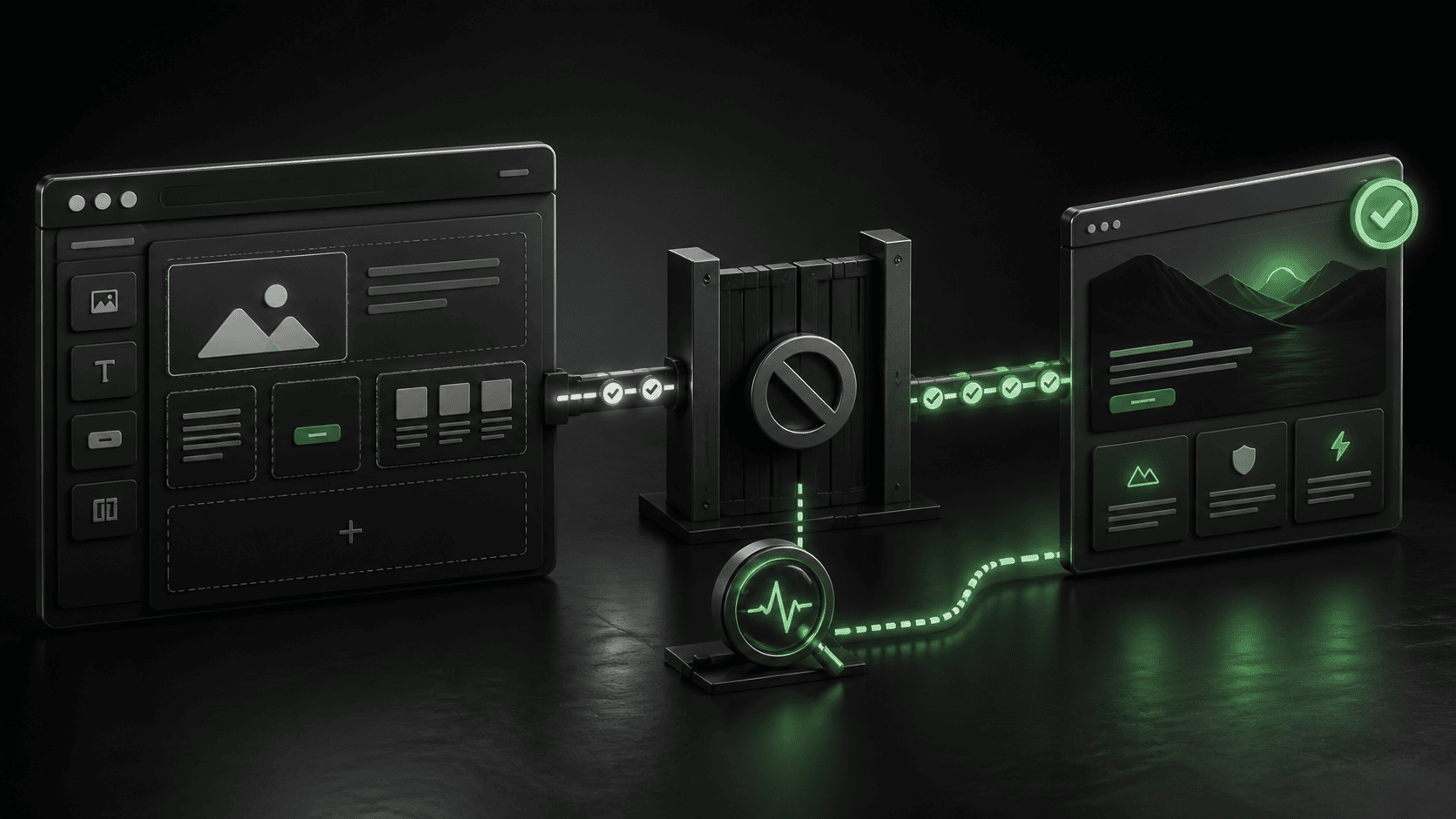
If the Elementor publish button is not working, protect your unsaved work before refreshing the editor or clearing anything. Copy important text into a local document, note the page URL and time, and record what the button does: stays grey, spins, returns an error, or says the page was saved while the live page remains unchanged.
Elementor released version 4.2.3 on August 19, 2026 with a specific fix for invalid style properties that could prevent pages from being published. That is a credible first check for affected sites, but it does not explain every save failure. A 403 response, a 500 or 503 error, a disabled button, and an old cached public page belong to different parts of the publishing path.
This guide helps a WordPress owner separate those cases without rebuilding the page, disabling every plugin, or assuming the latest update caused the problem.
Why the Elementor publish button is not working
The official Elementor changelog lists two fixes in 4.2.3: stronger security enforcement for template handling and a correction for invalid style properties that prevented pages from being published. The release is relevant when one page or template stops saving after style work, especially if the failure appeared around an Elementor update.
However, the changelog does not say that every broken Publish or Update button has the same cause. Elementor’s own publishing troubleshooting guide also points owners toward PHP error logs, memory limits, erroneous sections, security tools, and server firewalls. Start with the symptom and the response, then decide whether the 4.2.3 fix fits.
If you use Elementor Pro, keep the free and Pro plugins on compatible stable versions. Elementor’s update guidance recommends backing up first and keeping both components current. Do not update one part blindly on a busy live site when you cannot restore it.
Match the Elementor publishing symptom before changing WordPress
The same owner complaint can describe several failures. Use the table as a visual decision path. Read across the row that matches what you can actually observe.
| What you see | What it proves | First evidence to keep | Next safe action |
|---|---|---|---|
| The Publish or Update button stays disabled | The editor does not think a publishable change is ready, or the editor state did not initialize correctly | Page URL, editor version, browser console message, and whether a small text change enables the button | Save the content elsewhere, reload once, and test a small reversible change before touching caches or plugins |
| The button spins and never finishes | A save request started, but the browser did not receive a successful completion | The failed network request, response code, time, PHP log entry, and whether autosave created a revision | Inspect the failed request and server log; do not keep clicking Publish and create competing saves |
| The request returns 403 | The request reached a security boundary that refused it | Request URL, security or firewall event, rule ID when available, and the affected user role | Review the named rule with the host or security provider; do not disable protection site-wide |
| The request returns 500 or 503 | WordPress, PHP, or the server failed while processing the save | Exact error log entry, memory use, request time, and the last changed component | Follow the named error and test the smallest reversible correction on staging |
| Only one styled page or template will not publish | The failure may live in that document’s data rather than the whole site | A duplicate or export of the page, the last edited section, and Elementor/Core/Pro versions | Test Elementor 4.2.3 on staging and isolate the last style change before rebuilding anything |
| Elementor reports success, but visitors see the old page | The save probably completed; the public delivery path may still serve an older copy | The public URL in a private window, page revision time, cache headers, and CDN status | Follow the saved-but-not-showing diagnosis instead of repeating the page edit |
When the Elementor publish button is not working, this distinction prevents a common mistake: treating every publishing problem as a cache problem. A cache purge cannot repair a failed database write or a blocked request. Likewise, deleting page sections will not fix an old CDN response when WordPress already stored the update.
Protect the page before troubleshooting
Elementor can preserve revisions and autosaves, but you should not assume the newest visible editor state already exists in WordPress. Before reloading:
- Copy new text, links, form labels, and other irreplaceable changes into a local document.
- Take screenshots of the affected section and responsive settings that would be difficult to rebuild.
- Open the page’s revision history in a separate tab only if doing so will not replace the active editor session.
- Record the exact time and timezone, page URL, WordPress version, Elementor version, Elementor Pro version, and browser.
- Do not clear revisions, optimize the database, or run a broad cleanup while the newest recoverable state is uncertain.
A backup taken after the editor became stuck may contain the broken state but not the unsaved work in your browser. Treat the browser copy, WordPress revision, database backup, and public page as separate evidence.
If the Elementor publish button is not working after 4.2.3
The 4.2.3 publishing fix is most relevant when a page or template contains style data that Elementor cannot accept. It becomes less likely when every WordPress save fails, the request is explicitly blocked with 403, or the editor saved successfully and only the public page is stale.
Use this order:
- Confirm the version. Check Plugins for Elementor and Elementor Pro. Do not assume an available update installed successfully.
- Compare one simple page. Create a disposable staging page with a heading and paragraph. If it saves, the failure is probably document-specific rather than a site-wide publishing outage.
- Duplicate the affected page on staging. Keep the original intact. Test the duplicate with the current stable Elementor and compatible Pro version.
- Undo the last style change first. Use the revision or history controls. Do not erase unrelated sections to make the error disappear.
- Verify the result publicly. Check the real URL in a private browser at desktop and mobile widths. A green editor notice is not the final test.
If 4.2.3 resolves the duplicate on staging, update through the normal licensed path, then test forms, menus, responsive styles, templates, dynamic content, and cache layers before calling the live site fixed. Keep a rollback point until the page has handled real visits without repeating the failure.
When the Elementor publish button spins or returns an error
If the Elementor publish button is not working because a request never finishes, the spinning button is a missing result, not a diagnosis. Open the browser’s developer tools, select Network, trigger one save, and inspect the request that fails or remains pending. You do not need to understand every line. Preserve the URL, status code, response text, and time for the person who will investigate.
If you see 403
A 403 response usually means the request reached a rule that refused it. The rule may belong to a WordPress security plugin, host firewall, CDN, or permissions layer. Elementor’s support guidance specifically mentions security plugins and server firewalls. Ask for the event that matches the exact time and request instead of switching off every rule.
If you see 500 or 503
A 500 or 503 response points toward PHP, WordPress, resource, or server failure. Check the newest PHP or hosting error log. If the log names a function, plugin, theme file, memory limit, timeout, or database error, follow that evidence. Our WordPress error-log guide explains what to preserve and when to stop live testing.
Do not keep increasing memory without confirming exhaustion, and do not deactivate every business plugin on production. A checkout, form, membership, or multilingual page can depend on several components. Reproduce the failure on staging and remove one variable at a time.
Do not confuse publishing with public delivery
Elementor’s changes-not-showing guidance separates the editor preview from the public URL. If WordPress created a new revision and Elementor finished the update, check the real page in a private window. Then compare WordPress cache, server cache, CDN cache, and browser cache in that order.
Only purge after you know the source page saved correctly. Purging too early destroys useful cache evidence and can send more uncached traffic to a site that is already failing. If the new revision does not exist, return to the save request and server log.
Stop testing live when the page affects business
Move the investigation to staging and preserve the current live version when any of these conditions apply:
- the page contains checkout, payment, account, booking, lead-form, or membership logic;
- the save changes a global header, footer, template, popup, product layout, or dynamic field;
- different user roles see different content;
- the editor starts producing duplicate sections, missing widgets, or broken mobile styles;
- the error log names another plugin, the theme, PHP, or the database;
- you cannot restore the page and its related settings independently.
A simple brochure-page text correction is reasonable to test after a backup. A global WooCommerce template or lead-generation page deserves controlled staging, version checks, logs, and a rollback plan.
What to send a WordPress specialist
A useful support request for an Elementor publish button that is not working is short and specific. Include the affected URL, whether it is a page or template, what the button does, the response code, the matching error-log line, the time, WordPress and PHP versions, Elementor and Elementor Pro versions, the last successful save, and the last component or style change.
Also state whether the public page still works, whether checkout or forms are involved, and whether you have a staging copy and restorable backup. That evidence lets a specialist test the likely layer without using your live page as a laboratory.
The safe answer
If the Elementor publish button is not working, checking version 4.2.3 is worthwhile because it fixed a real page-publishing problem involving invalid style properties. It is not a universal cure for every disabled, spinning, blocked, failed, or stale Publish button.
Protect the unsaved work, identify the exact save symptom, capture one request and one matching log entry, and test the current compatible Elementor pair on staging. Once WordPress stores the revision, verify the actual public page at desktop and mobile sizes. That order is faster than rebuilding blindly and safer than disabling every layer at once.