
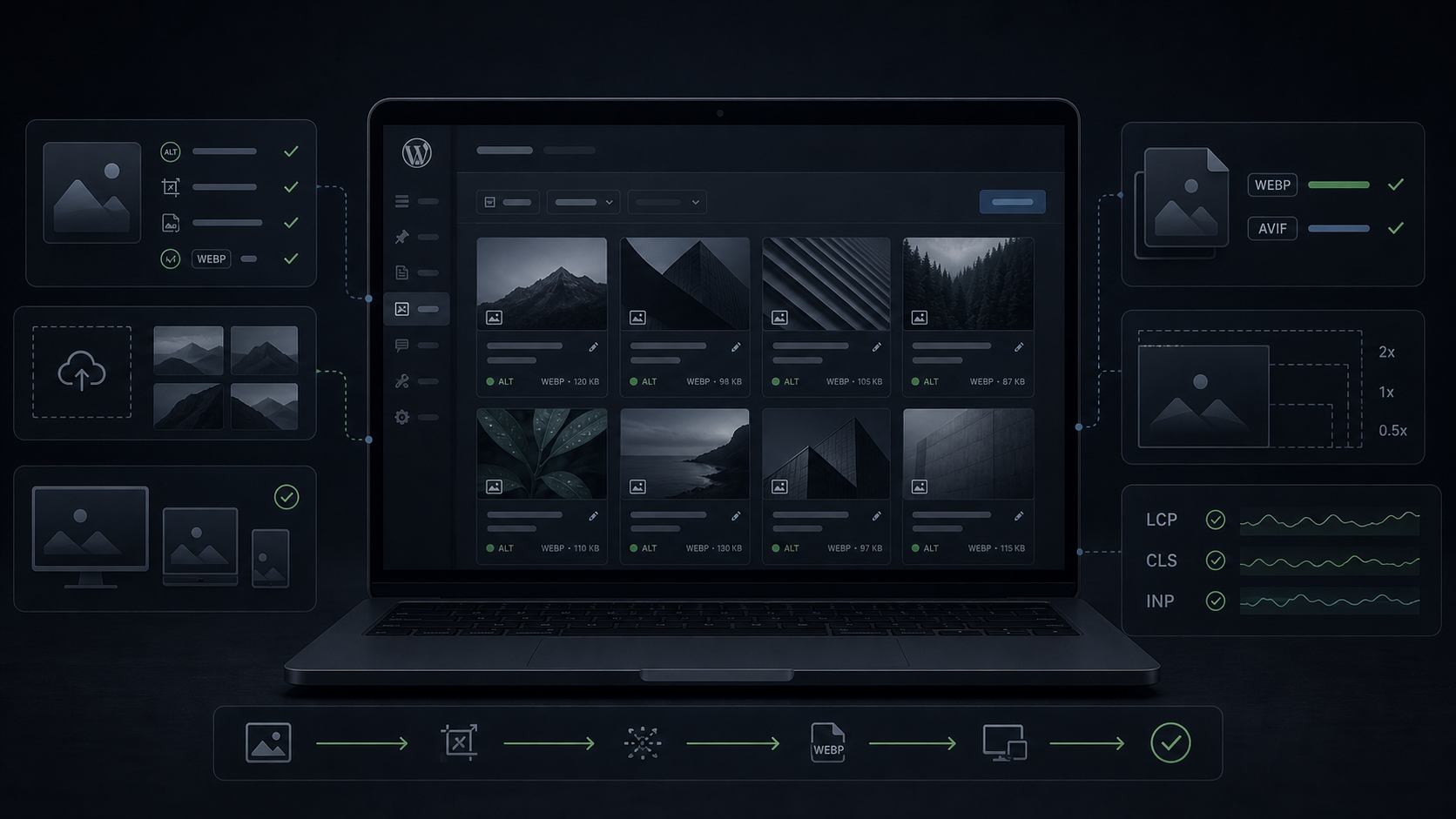
Image SEO is not only an alt text task
A good WordPress image SEO checklist should cover more than filling in a media-library field. Alt text matters, but image SEO also depends on the file name, the page around the image, the size served to mobile visitors, whether the image shifts the layout, and whether the most important visual loads early enough for a real person to see it.
I see this often during WordPress speed work. A site owner runs every image through a compression plugin, gets smaller files, and still has a slow page. Another site writes alt text for every upload, but Google still gets weak context because the image sits next to thin copy or the mobile version uses a different image setup. The checklist has to connect SEO, performance, and the actual page template.
For Webless, image SEO starts with one question: what job does this image do on the page? A hero image should support the main offer and load fast. Product photos should help the buyer inspect the item. Blog diagrams should explain something better than a paragraph. Once that purpose is clear, the technical decisions become much easier.
The quick WordPress image SEO checklist
If you only have time for one pass, start here. This catches most image issues that hurt search visibility, speed, and user experience.
| Checklist item | What to check | Why it matters |
|---|---|---|
| Image purpose | The image supports the page topic, offer, product, or explanation. | Google uses the surrounding page context to understand images. |
| File name | The file name is short, descriptive, and not a random camera export. | It gives another small context signal before the image even loads. |
| Alt text | The alt text describes the image in the context of the page. | It helps accessibility and gives search engines useful image context. |
| Image size | The browser receives a size close to what the layout needs. | Oversized images waste bandwidth and slow mobile visitors. |
| Modern format | WebP or AVIF is delivered where supported, with a fallback when needed. | Modern formats can reduce weight without destroying quality. |
| LCP image | The main above-the-fold image is not lazy-loaded by mistake. | A delayed hero image can hurt Largest Contentful Paint. |
| Dimensions | Images reserve space with width, height, aspect ratio, or stable layout CSS. | Missing dimensions can create layout shifts as images load. |
| Schema image | The featured image is relevant, crawlable, and attached to the article schema. | Google’s structured-data rules expect page images to be relevant and accessible. |
That table looks simple, but the order matters. Do not start by compressing everything. Start by deciding which images are important. Then improve the files, the markup, and the page template around them.
Start with images that already affect visibility
The first mistake is treating every image as equal. They are not. A logo in the footer, a buried gallery image, a blog featured image, and a product hero image do not carry the same SEO or performance risk.
When I audit a WordPress site, I usually start with four groups. First, pages that already receive impressions in Search Console. Second, service pages that should convert visitors. Third, product or category pages where images help the buying decision. Finally, blog posts that explain a visual process, such as speed testing, maintenance checks, or before-and-after fixes.
This keeps the work practical. If a page already appears in search but gets few clicks, better title text, a stronger featured image, and clearer image context can support the page. If a service page depends on a large hero image, the SEO value can disappear when the image hurts loading speed. The image and the page have to work together.
Write alt text for people first
Alt text should explain the image when the image cannot be seen. It should not read like a keyword list. Google’s own image SEO best practices recommend descriptive filenames, titles, and alt text, but the important word is descriptive. The text should describe the image and its relationship to the page.
A weak alt text example would be: “wordpress seo image optimization webp speed checklist.” That string tells you the writer wanted keywords. It does not tell you what the image shows. A stronger version might be: “WordPress media library with image SEO checks for alt text, WebP, responsive sizes, and Core Web Vitals.” That sentence gives context without pretending to be invisible copy.
For decorative images, empty alt text can be the right choice. Meaningful images need a specific description. Product images should mention the product and visible details. Screenshots should describe the screen and action. Charts work best when the nearby copy summarizes the takeaway for visitors and search engines.
Google’s SEO starter guide also points out that high-quality images should sit near relevant text. That is easy to forget in WordPress, where featured images can feel separate from the article. The surrounding copy still matters.
Use file names that explain the image
File names will not save a weak page, but they still belong in a complete checklist. A media library full of files like IMG_4382.jpg or screenshot-final-final-2.png makes the site harder to manage and gives search engines less context than it could.
Use short names that describe the image. For example, wordpress-image-seo-checklist-dashboard.png is better than a random export. Product files can include the product name and useful visual detail. Service-page files can use the topic and the visual idea. Keep it natural. Do not turn file names into long keyword chains.
This is also a workflow issue. Renaming images after they already rank or after they appear across many pages can create avoidable URL changes. For old content, I would rather fix alt text, image size, and page context first unless the file name is truly messy and the migration is handled carefully.
Fix image size before chasing another plugin
Compression helps, but it is not the whole job. A 300 KB image can still be wrong if the browser only needs a 420 pixel card. WordPress can generate multiple image sizes, but themes and builders do not always serve the right one. Some layouts still send a huge image into a small space, especially in custom grids, sliders, and page-builder templates.
The practical check is simple. Open the page, inspect the image, and compare the rendered size with the natural file size. If the layout displays a 500 pixel image while the browser downloads a 2500 pixel file, compression is only reducing waste. The template needs a better image size or responsive image output.
Google’s image SEO best practices explain that Google uses page content, captions, image titles, and other surrounding signals to understand images. That means the image should be both understandable and usable on the page. A technically “optimized” file that loads slowly on mobile can still weaken the page experience.
If this pattern appears across many templates, it moves from content editing into WordPress development services. The fix may involve theme image sizes, template markup, responsive rules, or how a builder outputs images.
Do not lazy-load the image that matters most
Lazy loading is useful for images below the fold. It keeps the browser from fetching every image at once and can make long pages feel lighter. The problem starts when the main above-the-fold image gets delayed too.
For many WordPress pages, the hero image or first large content image becomes the Largest Contentful Paint element. Web.dev’s LCP guidance is clear that lazy-loading the LCP image can delay the resource and hurt loading experience. In plain language, the image your visitor expects first should not wait until later.
That is why image SEO and speed optimization overlap. A page can have good alt text and still feel slow because the hero image loads late. A performance plugin can improve offscreen images and still damage the most important image if the settings are too broad.
On a Webless audit, I usually separate images into three groups. Critical images load early. Normal content images can load with standard browser lazy loading. Decorative or lower-priority images can wait. This is more reliable than applying one setting to every image on the site.
Reserve space to avoid layout shifts
Images should not push the page around after they load. When an image has no stable dimensions, the browser may not know how much room to reserve. Text moves, buttons shift, and the page feels jumpy. That affects users, and it can affect Core Web Vitals through Cumulative Layout Shift.
Web.dev lists images without dimensions as a common cause of poor CLS. The fix is usually straightforward: make sure images have width and height attributes, an aspect ratio, or layout CSS that reserves the right space. WordPress often handles this well for normal content images, but custom templates, sliders, galleries, background images, and third-party widgets can still create problems.
This is one reason I do not like image optimization as a blind bulk task. The media library might look cleaner while the frontend still shifts. Always check the rendered page, especially on mobile.
Use WebP and AVIF carefully
Modern formats can make a real difference. WebP and AVIF often reduce image weight compared with older JPEG and PNG files, especially when the visual quality target is set correctly. Plugins such as ShortPixel can help create and deliver those versions.
Still, format conversion needs a quick reality check. Do important images still look sharp? Are transparent PNGs still transparent? Does the CDN or cache layer serve the new format correctly? Are fallback versions available where needed? Does the featured image still appear in social previews and structured data?
If your site already uses image tools, read our guide on optimizing images with ShortPixel. The short version is this: use plugins for repeatable compression work, but verify output on the pages that matter most.
Make featured images useful for search and sharing
A featured image is not just decoration. It can appear in article previews, social cards, related-post grids, and schema output. It also shapes how the article feels before a visitor reads the first paragraph.
For a blog article, I want the featured image to match the search intent. A post about WordPress image SEO should show media, search, speed, or checklist cues. Generic laptop stock photos say less. Dark abstract backgrounds say almost nothing. The image should help the visitor understand the topic faster.
Google’s structured-data guidelines also require images used in structured data to be relevant, crawlable, and indexable. Yoast usually handles Article schema for WordPress posts, but the image itself still needs to make sense for the page. Do not attach a random visual just because it looks polished.
Check mobile image context
Mobile is where many WordPress image problems become obvious. A desktop hero can look sharp while the mobile crop cuts off the useful part. Two-column image and text layouts can stack in a way that separates the image from its explanation. Carousels can hide the best image behind a swipe most visitors never use.
Google’s mobile-first indexing guidance says mobile pages should use the same image alt text, titles, captions, filenames, and relevant text as desktop. That does not mean the layout must be identical. It means the mobile version should not lose the context that helps Google and users understand the page.
Before calling the image work done, open the important pages on mobile. Check the hero crop, image spacing, caption placement, tap targets near images, and whether the first meaningful image still supports the page topic.
Use image SEO to support conversions
Image SEO is not only about image search traffic. Better images can make a service page easier to trust, a WooCommerce product easier to evaluate, and a technical blog easier to remember. That matters for clicks, leads, and assisted conversions.
For service businesses, I like images that show process and proof. A speed optimization article can show a performance dashboard or before-and-after audit flow. Maintenance content can show update, backup, security, and checkout checks. Development content can show clean UI structure, not just code on a screen.
This is where WordPress speed optimization, SEO, and design meet. The image should help the page rank, but it should also help the person decide whether the page is worth reading and whether the service feels credible.
A practical image audit workflow
If I had to audit a WordPress site quickly, I would use this order.
- Export or list the pages with search impressions, leads, sales, or important service intent.
- Check each page’s featured image, hero image, and first large content image.
- Review alt text, file names, captions, and surrounding text for those images.
- Compare rendered image dimensions with downloaded image dimensions.
- Check whether the LCP image loads early and whether below-the-fold images lazy-load.
- Look for CLS caused by images, galleries, ads, embeds, or late-loading widgets.
- Confirm WebP or AVIF delivery where it helps, then inspect visual quality.
- Review mobile layout so the image and explanation still sit together.
This workflow keeps the checklist tied to business value. It avoids spending a whole afternoon fixing buried images while a search-visible service page still has a weak hero image and poor mobile crop.
When Webless should help
You can handle basic image SEO in WordPress without a developer. Rename new files before upload, write useful alt text, choose better featured images, compress obvious heavy files, and keep images near relevant copy. That alone can clean up many sites.
Bring in help when the problem lives in the template. If the theme serves the wrong image size, the LCP image loads too late, CLS comes from a custom section, WebP delivery conflicts with the CDN, or a page builder outputs heavy galleries, the fix may need development and performance work.
Webless can help with that deeper layer: image audits, Core Web Vitals fixes, responsive template cleanup, caching checks, and ongoing WordPress maintenance services so the site does not drift back into the same image problems after each new post, product, or redesign.
The simple rule
Good image SEO is clear, fast, and useful. The image should explain something. Files should be light enough for the page. Markup should help the browser reserve space. Surrounding copy should give context. Mobile layouts should still make sense.
That is the real checklist. Alt text alone is not enough. Compression alone is not enough. Another plugin alone is not enough. WordPress image SEO works best when the image, page, template, and performance settings all support the same goal: help people understand the page faster and help search engines understand why it deserves to be shown.