
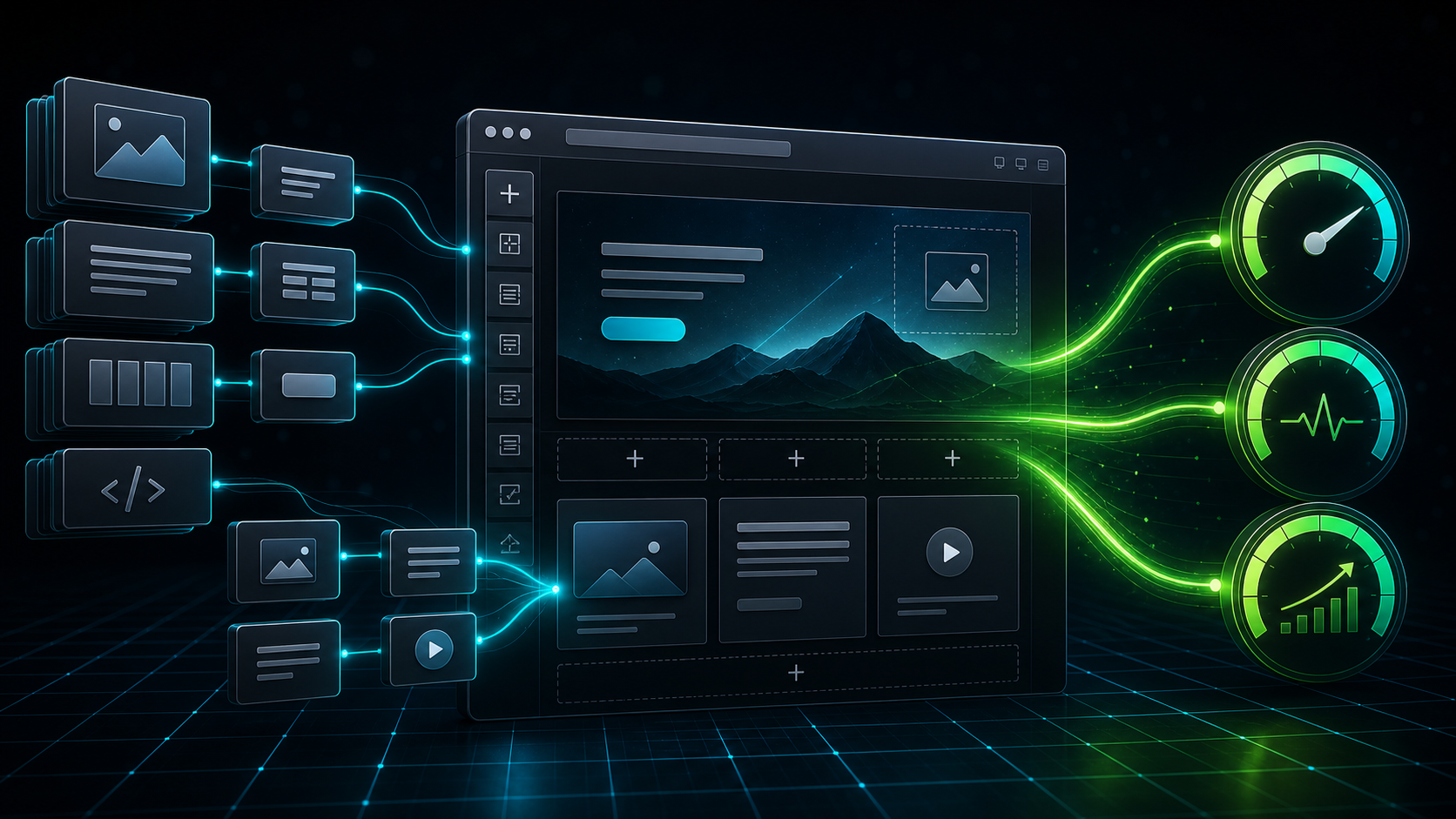
The add-on is rarely just one more widget
Elementor add-ons Core Web Vitals problems usually start quietly. A site owner adds one widget pack for a better menu, another for carousels, one more for pricing tables, and a small popup tool for a campaign. Each choice feels reasonable in the moment. Then the homepage, service page, or lead form starts feeling heavy on mobile.
I do not treat Elementor add-ons as automatically bad. They can save time, give editors useful design options, and avoid custom development for small features. The real issue is control. Every add-on can bring extra CSS, JavaScript, icons, fonts, animations, database options, and editor logic. Some load only where needed. Others touch pages that never use the widget.
This guide explains how Elementor add-ons affect Largest Contentful Paint, Interaction to Next Paint, Cumulative Layout Shift, and the practical decisions around keeping, replacing, or rebuilding a feature.
Why add-ons affect Core Web Vitals
Core Web Vitals measure real parts of the user experience. Google describes them around loading speed, responsiveness, and visual stability. In practice, that means a page needs to show the main content quickly, respond to taps without delay, and avoid jumping while the visitor reads or clicks.
The official Google Core Web Vitals documentation is useful because it keeps the conversation away from vague speed scores. LCP, INP, and CLS each point to a different type of problem. Elementor add-ons can affect all three when they load heavy assets, add unstable layout elements, or run scripts during important interactions.
Elementor’s own performance guidance also points to familiar causes such as hosting, images, plugins, third-party scripts, caching, and asset loading. That matches what we see during WordPress speed optimization services. The add-on is not always the only problem, but it often decides how much front-end work the browser has to do.
How add-ons hurt LCP
Largest Contentful Paint usually cares about the first screen. On many Elementor sites, the LCP element is a hero image, background image, heading block, banner, slider, or large content section. Add-ons become risky when they change how that first screen loads.
A slider widget can delay the real hero image. A banner add-on can inject CSS before the main section paints. An animation library can make the first content wait for JavaScript. A widget pack can load icon fonts or global styles on every page, even when the page only uses one small module.
When I audit a slow Elementor page, I first ask a simple question: what is the largest visible thing above the fold, and what has to load before it appears? If the answer includes three add-ons, a background video, a large image, and a delayed style file, caching alone will not fix the whole problem.
Our guide on how to fix LCP on WordPress goes deeper into LCP diagnosis. For add-on-heavy Elementor pages, the short version is this: keep the first viewport boring in the best way. Make it clear, fast, and easy for the browser to render.
How add-ons hurt INP
Interaction to Next Paint is where many add-ons reveal their real cost. A page can look loaded and still feel sluggish when a menu opens slowly, a tab waits before switching, a form field lags, or a button responds late.
Add-ons can hurt INP when they add long JavaScript tasks, bind too many events, initialize every widget at once, or keep animation and tracking scripts busy while the visitor tries to interact. Carousels, filters, mega menus, popups, maps, forms, accordions, and review widgets all deserve extra attention.
The problem gets worse when several add-on packs overlap. One plugin handles tabs, another handles sliders, another handles popups, and another handles forms. Each one may be fine alone. Together, they can keep the browser occupied during the exact moment a visitor tries to click.
That is why I prefer to test important interactions, not only the first load. Open the menu. Submit the form on staging. Tap the pricing toggle. Use the filter. If the main action feels delayed, read our separate guide on how to improve INP on WordPress before adding more delay settings blindly.
How add-ons hurt CLS
Cumulative Layout Shift often comes from elements that arrive late or reserve the wrong amount of space. Elementor add-ons can create this when they inject banners, load fonts late, resize carousel items, reveal popups, change tab heights, or place dynamic review widgets above content.
The visitor does not care which plugin caused the jump. They only feel the page move under their finger. That can hurt trust, especially on pricing pages, booking pages, forms, and service pages where people are deciding whether to contact the business.
Good add-on hygiene means setting image dimensions, reserving space for dynamic widgets, avoiding layout-changing animations above the fold, and testing mobile. Desktop previews hide many CLS issues because the screen has more room. Mobile exposes them quickly.
A practical add-on risk table
Use this table before installing another Elementor add-on or when cleaning an older site. It keeps the decision tied to user experience instead of plugin count alone.
| Add-on pattern | Core Web Vitals risk | What to check first | Safer direction |
|---|---|---|---|
| Sliders and hero carousels | LCP, CLS, INP | Hero image timing, slide height, scripts above the fold | Use one static hero or a lighter custom section when the carousel does not change decisions |
| Mega menus | INP, CLS | Tap delay, mobile behavior, icon/font loading | Keep the menu simpler and load only the assets the header needs |
| Popups and announcement bars | CLS, INP | Late layout shifts, trigger timing, script weight | Reserve space or show the offer in-page when it matters more than the popup effect |
| Tabs, accordions, and toggles | INP, CLS | Switch delay, changing container heights, unused scripts | Use native Elementor widgets or a small custom component when the layout is repeated |
| Maps, feeds, reviews, and embeds | LCP, INP | Third-party requests, iframe timing, mobile interaction delay | Delay below-the-fold embeds and replace heavy feeds with static proof where possible |
| Icon and animation packs | LCP, INP | Font files, animation libraries, global CSS | Use fewer effects and remove packs that only provide one small visual detail |
How to audit Elementor add-ons without breaking the site
Start with the page that earns attention or revenue. For many Webless clients, that means the homepage, main service page, pricing page, contact page, or a campaign landing page. Do not spend the first hour optimizing an archive that nobody visits while the lead page stays heavy.
Make a list of every Elementor add-on and the pages where its widgets appear. Then open one important page and check the network requests. Look for plugin folder names inside CSS and JavaScript files. If an add-on loads assets on a page where it does not appear, mark it for cleanup.
Next, inspect the first viewport. If the hero uses a slider, background video, animated title, badge carousel, popup trigger, and large image, remove the effect that helps least. A faster first impression usually beats a busy one.
After that, test interactions. Use the menu, form, tabs, filters, and buttons on mobile. If a feature looks impressive but delays the main action, it needs a stronger reason to stay.
Finally, make one change at a time. Disable or replace one add-on on staging, clear cache, test the same URL, and check the layout. Randomly removing plugin packs on a live site can break forms, headers, popups, or custom templates. A good cleanup protects the business while reducing weight.
When a plugin setting is enough
Sometimes the fix is configuration. A caching or optimization plugin may delay non-critical scripts, remove unused CSS, lazy load below-the-fold media, or stop assets from loading on pages that do not need them. That can work well when the add-on is valuable and the issue is mainly delivery.
The risk is pushing settings too hard. Delay the wrong script and the menu breaks. Remove too much CSS and the layout flashes. Lazy load the hero image and LCP gets worse. Every setting should answer a measured problem, not a hope.
This is why our Elementor speed optimization guide starts with diagnosis. Plugin settings are useful, but they should follow the page, not lead it.
When custom development is the cleaner fix
Custom development makes sense when a large add-on exists only to power one small repeated feature. For example, a site might use a full widget pack just for a pricing toggle, a testimonial layout, or a small icon row. In that case, a lean custom component can load less, behave more predictably, and reduce update risk.
This does not mean rebuilding the whole site. A good hybrid approach keeps Elementor where editors need flexibility and uses custom code for performance-sensitive pieces. The first viewport, lead form wrapper, pricing comparison, archive template, or repeated service block can often move to cleaner code while the rest of the page stays editable.
That is where WordPress development services connect directly to speed. Development is not only about new features. It can remove the need for heavy general-purpose add-ons when a site needs one precise outcome.
How this connects to maintenance
Add-ons need updates, compatibility checks, testing, and occasional replacement. A site with many overlapping widget packs can become harder to maintain each month. Editors may not know which plugin powers which block, and updates can feel risky because one small version change can affect headers, forms, sliders, and styling.
Strong WordPress maintenance services should catch that drift. Maintenance is not only backups and updates. It should also ask whether the plugin stack still matches the site, whether key pages still pass performance checks, and whether new content copied old slow patterns.
If your site keeps adding widgets for every design request, read the guide on too many WordPress plugins. The same thinking applies here: the count matters less than what loads, where it loads, and whether it helps the visitor.
A simple keep, replace, or rebuild framework
When an Elementor add-on affects Core Web Vitals, I use a simple framework.
- Keep it when the widget supports a real user action, loads only where needed, stays maintained, and does not hurt the page after testing.
- Configure it when the add-on is useful but loads too much globally, initializes below-the-fold features too early, or needs better asset control.
- Replace it when a lighter Elementor-native widget or smaller plugin can do the same job with less front-end weight.
- Rebuild it when a small business-critical feature depends on a large add-on pack and the page needs tighter performance control.
This framework keeps the discussion practical. The goal is not to remove every add-on. The goal is to remove the avoidable cost from pages that need to rank, load, convert, and stay stable.
What Webless would check first
In a Webless audit, I would start with the URL that matters most. Then I would record the current Core Web Vitals symptoms, list the Elementor add-ons, check which assets load on that page, and identify the first-screen element. That gives the cleanup a target.
From there, I would separate four issues: media weight, add-on assets, JavaScript interaction cost, and template structure. Those problems often overlap, but separating them prevents guesswork. If the hero image is the LCP issue, fix the image and layout. Menu scripts that delay taps point toward INP work. A popup that shifts the page belongs in the CLS cleanup list.
After each change, retest the public page and check the real user flow. A better score does not help if the form breaks, the mobile menu stops opening, or the pricing section loses the comparison detail people need.
For sites where speed, SEO, and lead generation matter, a Core Web Vitals report is often the cleanest starting point. It turns a vague add-on debate into a measured plan: what to keep, what to configure, what to replace, and what to rebuild.
Final answer: audit the add-ons that touch important pages
Elementor add-ons can help a WordPress site, but they should earn their place. The risky ones load assets everywhere, delay the first screen, slow interactions, shift layouts, or make updates harder than they need to be.
Do not judge them only by the plugin count. Judge them by the page they affect, the Core Web Vitals symptom they create, and the business value they support. Keep useful add-ons, configure the ones that load too much, replace weak ones, and rebuild small high-value features when custom code gives a cleaner result.
If you want a measured cleanup, Webless can review your Elementor setup as part of WordPress speed optimization, ongoing maintenance, or a focused development pass. The best fix is the one that makes the site faster without making it harder to use or update.